Android 1.0.14: connection improvements and additional routes
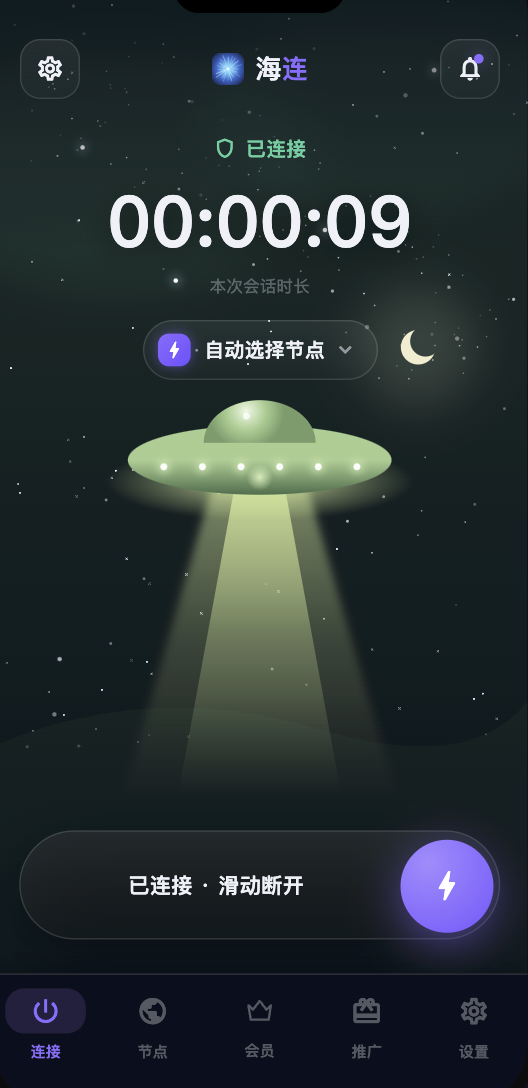
Hailian VPN announced Android 1.0.14 on 23 July 2026. The release focused on the connection engine, route availability and the steps between opening the app and establishing a connection. These notes describe that dated release; later versions may have replaced its implementation and available locations.
Connection-engine refinements
The release announcement described changes intended to improve connection establishment and recovery. Such changes can help with particular network conditions, but they do not establish a universal success rate. Mobile carriers, Wi-Fi equipment, system restrictions and destination services can all affect the result.
After installing an update, test the service from the network you normally use. Check both the connection indicator and a real HTTPS website. If only one destination fails, investigate that service separately before treating the whole connection as broken.
More route options
Additional nodes were included in the announcement to give users more options when a route was congested or unsuitable. The current node list in the app is authoritative for today's availability. A country label alone does not tell you the route's congestion, peering or performance from your ISP.
Try one available route at a time and keep the test conditions similar. Change the location, repeat the same website test and note whether the result is consistent. Frequent random switching makes a useful diagnosis harder.
Starting and switching connections
The update refined the startup and route-switching experience. Android still requires system VPN authorisation, and another VPN app can conflict with the active connection. Check the current account's membership before assuming that an app update changes your access rights.
Smart routing and global mode have different purposes. Smart routing can leave local services on the direct network; global mode uses the tunnel more broadly where supported. The mode you choose affects which traffic is covered by the VPN.
Install the current supported version
Use the official Android download or the supported in-app update flow. This article does not link to an archived 1.0.14 installer. Confirm the domain and publisher before installing, and keep Android security scanning enabled.
If Android blocks installation, identify whether the message concerns an unknown source, incompatible package, conflicting signature or a harmful application. These warnings are different. The installation security guide explains what to check.
Troubleshooting after an update
- Confirm the underlying network works with the VPN disconnected.
- Reopen the official app and sign in to the correct account.
- Confirm membership and any required system permission.
- Stop other VPN or proxy tools while testing.
- Try another available route and the same website.
- If the problem persists, send official support the model, OS, client version and error time.
For longer interruptions, see random disconnections. Do not include passwords, codes or unrelated private screenshots in a support request.