Samsung VPN connected but no internet: DNS and background checks
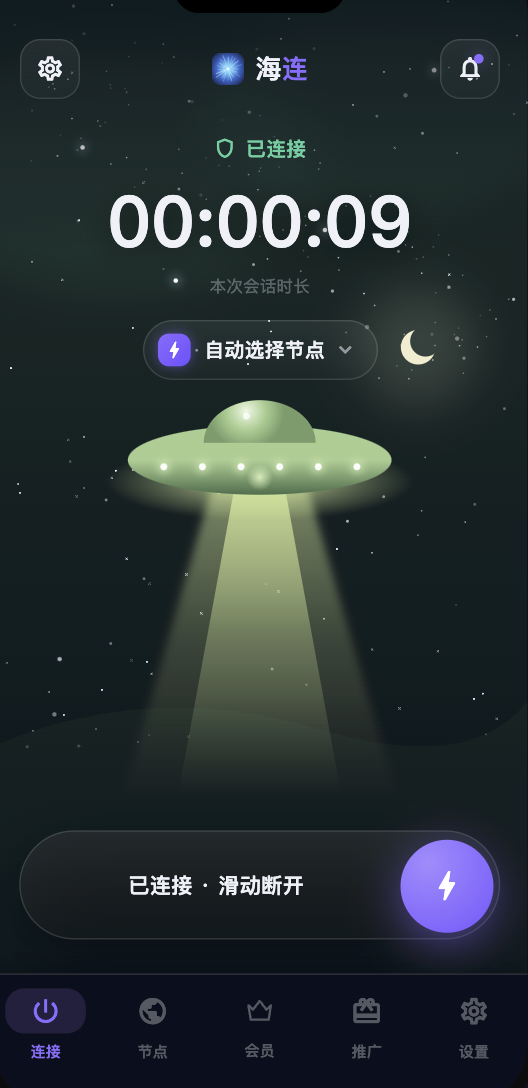
A Samsung phone can show an active VPN while websites fail to load. Several layers may be involved: the underlying network, VPN route, DNS, Samsung network features, browser settings or background restrictions. No single symptom proves that DNS is the cause in every case.
First isolate the failure
Disconnect the VPN and test a familiar local website. If it also fails, check Wi-Fi or mobile data first. Complete any hotel, school or café network sign-in before reconnecting. Then test a trusted HTTPS website and the destination that failed.
If only one app or website has a problem, investigate that service rather than treating the whole tunnel as unusable. Compare another available route on the same network.
Private DNS
Samsung settings may expose Android's Private DNS under Connections and additional connection settings; names vary with One UI and Android versions. A custom resolver can be unreachable from the current network or interact with the app's DNS path.
Record the original setting. If a custom provider is configured, try the supported automatic setting as a controlled test, reconnect and repeat the same website check. Restore the preferred setting if it does not help. A successful test suggests an interaction; it does not prove a universal fault in encrypted DNS.
Samsung Secure Wi-Fi and other network tools
Secure Wi-Fi or another VPN-style privacy tool can overlap with the active connection. Check whether one is enabled and temporarily stop overlapping tools while testing the official client. Android generally has a single active VPN slot per user profile.
Do not remove workplace-managed configurations without consulting the administrator. Keep a record of the settings you changed.
Browser secure DNS
A browser may use its own secure-DNS provider instead of the system's normal name-resolution path. If one browser fails but another app works, inspect that browser's DNS and proxy settings. Test a supported automatic configuration, then restore settings that do not affect the result.
Also check for a certificate warning or an incorrect device clock. A VPN does not make an invalid certificate trustworthy.
Battery and background restrictions
If the connection works while the app is visible but drops when the screen turns off, review battery optimisation, sleeping apps and background-data restrictions. Menu labels vary by One UI version. Allow the official client the background operation it needs, rather than disabling battery protections for every app.
Power-saving mode and switching between Wi-Fi and mobile data can also affect continuity. Test those transitions separately from a stationary connection.
Client, account and route
Confirm valid membership and the current supported app version. Use official downloads or the supported update flow. Test one alternative listed route; availability and performance depend on the current network.
A useful support report
Send the Samsung model, Android and One UI versions, client version, connection type, error time and which tests changed the result. Screenshots can show the relevant setting with private information hidden. Do not include passwords, codes or unrelated account data.
For general layered checks, see connected but no internet. For failures after the screen turns off, see random disconnections.